Offline is your computer’s verdict, not the printer’s condition. The computer sent a request to an address, heard nothing back, and marked the device unreachable. Roughly speaking that means a stuck print queue, an IP address that changed, or a sleeping network card. Broken hardware is far down this list.
The status comes from your computer, not the machine
Look at the printer’s own display. If it says ready, the printer is telling you everything is fine, and the disagreement between the two devices is the actual problem. Your computer keeps a record of where the printer lives on the network. Once that record goes stale, every job you send vanishes into a queue that will never drain, and the operating system labels the whole thing offline.
This matters because it changes where you spend your effort. Reseating cartridges, clearing paper trays, and reinstalling drivers do not address an address mismatch. The fastest route is to rebuild the connection between computer and printer and leave the hardware alone until the connection is proven.
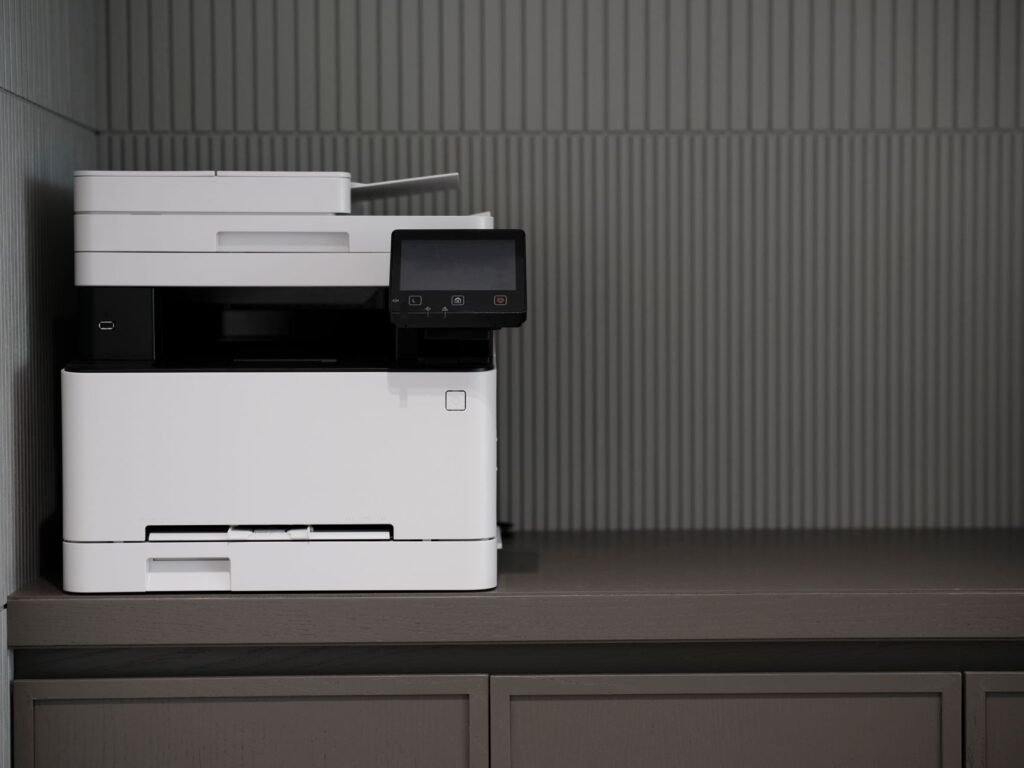
Run these steps in order and stop when it prints
- Clear the queue. Open the printer’s job list on your computer, cancel every pending document, then send a single fresh page. One corrupted job at the front of the line blocks everything behind it.
- Uncheck use printer offline. Windows has a manual offline toggle that gets switched on by accident and then stays on forever. It sits in the printer menu on the queue window.
- Power cycle the printer. Off, unplugged from the wall, count to thirty, plugged back in. Pulling the plug rather than using the button forces the network card to reinitialize.
- Print the network configuration page. Every network printer can print its own settings from the front panel. This gives you the address the printer currently believes it has.
- Compare that address to the one your computer has stored. If they differ, you found it. Add the printer again using the address from the configuration page.
- Reserve the address in your router. This is the step that stops the problem from returning next month.
Match the symptom to where the fault sits
| What you are seeing | Most likely cause |
|---|---|
| Offline on one computer, prints fine from another | Stale queue or wrong stored address on that computer |
| Offline on every device in the house | Printer dropped off wi-fi, or the router rebooted |
| Worked yesterday, offline today, nothing changed | Expired address lease from the router |
| Offline right after a system update | Driver replaced or print spooler service stopped |
| Offline over usb | Cable, port, or a hub that cannot supply enough power |
| Prints from phone but not laptop | Laptop is on a guest network or a separate wi-fi band |
The wi-fi band trap that catches new printers
Many home routers broadcast two networks that share one name, one on the slower long range band and one on the faster short range band. Plenty of printers, especially budget models, can only join the slower band. If your laptop is sitting on the faster one, the two devices are on separate networks and cannot see each other even though both show full signal.
The fix is to give the two bands different names in your router settings, then join the printer to the one it supports and confirm your computer can reach that same network. It is a fifteen minute change that removes an entire category of mystery.
When to stop troubleshooting and call someone
Call the manufacturer or a technician if the printer will not print its own configuration page from the front panel, if the display shows a hardware error code, or if it fails to hold a wi-fi connection after a factory network reset. Those point at the device itself. Everything short of that is a software conversation between two machines that lost each other, and you can win it from your desk.