
On Windows 11, open Settings, go to Apps and then Default apps, choose the browser you want, and select Set default. On a Mac, open System Settings, then Desktop and Dock, and pick from the Default web browser menu. On an iPhone, open the browser’s page in Settings and tap Default Browser App.
Setting a default browser in Windows 11 and Windows 10
Microsoft’s support page on changing default apps lays out the Windows 11 route. Open Settings, select Apps, then Default apps. Find the browser you want in the list or type its name into the search box, select it, then choose Set default next to the line that offers to make it your default browser.
Windows 10 works a little differently, according to Google’s Chrome help. Open Settings, go to Default apps, find Web browser, click the browser currently listed, and pick the new one from the window that appears.
Windows also lets you assign defaults by file type or link type. If one kind of link still opens in the old browser, search the Default apps page for .htm, .html, HTTP or HTTPS and set each to your chosen browser. Close and reopen any apps that were already running so they pick up the change.
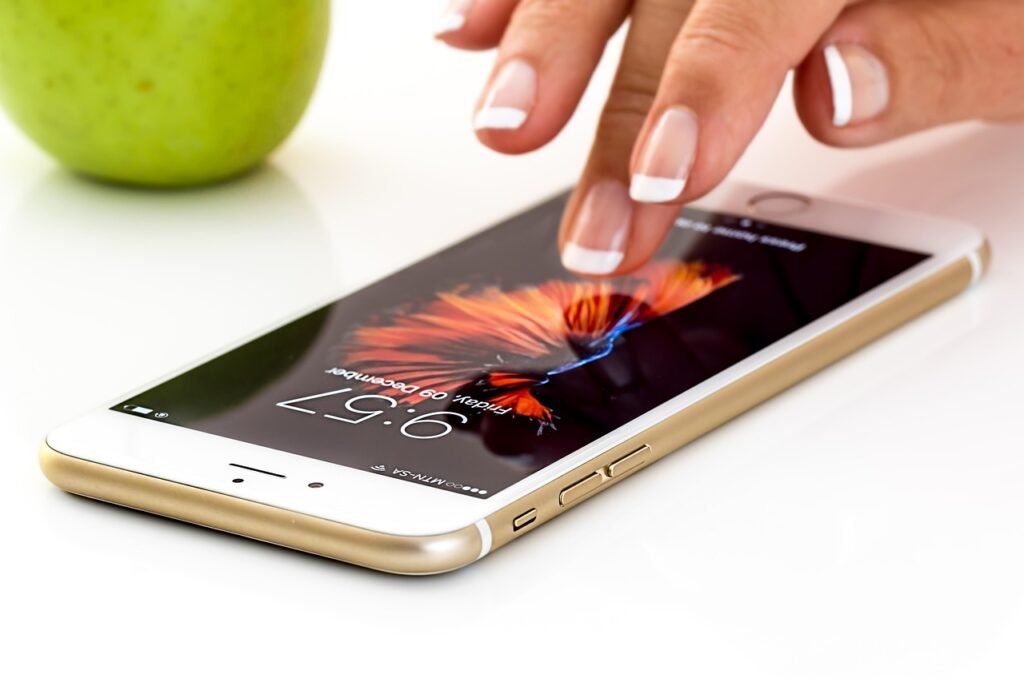
Changing the default web browser on a Mac
Apple’s instructions depend on your macOS version. On macOS Ventura 13 or later, choose System Settings from the Apple menu, click Desktop and Dock in the sidebar, scroll down on the right, and choose a browser from the Default web browser menu. On earlier versions, open System Preferences, click General, and use the same menu there.
The browser you want has to be installed before it appears in that menu. If it’s missing, open the browser once, then check again. Some browsers also ask to become the default the first time you launch them, and accepting that prompt takes you to the same menu.
iPhone, iPad and Android default browser paths
| Device | Where to change it | Note |
|---|---|---|
| Windows 11 | Settings, Apps, Default apps, choose browser, Set default | Also check .htm, .html, HTTP, HTTPS |
| Windows 10 | Settings, Default apps, Web browser | Click the current browser to swap it |
| Mac (Ventura 13 or later) | System Settings, Desktop and Dock, Default web browser | Earlier versions use System Preferences, General |
| iPhone or iPad | Settings, the browser’s app page, Default Browser App | Requires iOS 14 or later for Chrome |
| Android | Chrome menu, Settings, Default browser; or the phone’s default apps settings | Menu names vary by phone maker |
On Android, the system setting usually sits in the apps section of Settings, under a heading for default apps. The exact wording changes between manufacturers, so the in-browser option below is often quicker.
Making Chrome the default from inside the browser
Most browsers include a button that sends you to the right system setting. Google’s help pages list these paths for Chrome.
- On a Mac, open Chrome, select More at the top right, then Settings, and in the Default browser section select Make default.
- On Windows 11, open Settings, then Apps, then Default apps, search for Chrome, select Google Chrome, and choose Set default.
- On Android, open Chrome, tap More, then Make Chrome default, and select Chrome. You can also go through More, Settings, Default browser.
- On iPhone or iPad, open Chrome, tap More, then Settings, then Default Browser, tap Go to Settings, choose Default Browser App, and select Chrome.
If the Chrome option doesn’t show on an iPhone, Google says to update Chrome to the latest version. Other browsers usually have a similar button in their own settings.
When links keep opening in the old browser
A few apps ignore the system default. Email and social apps often open links in their own built-in viewer, and some have a setting to send links to your default browser instead, so look in the app’s own settings. On Windows, recheck the file and link types above, since a browser update can reassign them. Keep in mind that changing the browser doesn’t change the search engine inside it; that’s a separate setting in each browser.
Frequently asked questions
Why does my default browser keep changing back?
Browser updates, reinstalls and some software installers can ask to become the default, and clicking yes by mistake switches it. On Windows, also check the defaults for .htm, .html, HTTP and HTTPS, since those can point to different browsers. Reset them once from Settings and decline future prompts.
Can you have two default browsers?
Not for the same kind of link. The system sends each file or link type to one app. On Windows, though, you can assign different browsers to different file types, and many people keep a second browser installed for specific sites and open it manually when they need it.
Does changing my default browser delete my bookmarks?
No. Your old browser keeps its bookmarks, passwords and history. Changing the default only decides which app opens links. Most browsers offer an import option in their settings that copies bookmarks and saved data from another browser, so you can bring everything along.