
To fix screen flickering in Windows, open Task Manager and watch it: if Task Manager flickers too, the display driver is the likely cause, and if it doesn’t, an app is. Update or reinstall the driver in the first case and remove recently installed apps in the second, then check the cable and refresh rate.
Run the Task Manager flicker test first
Microsoft’s own troubleshooting starts here because it splits the problem in two within seconds. Press Ctrl + Alt + Delete and choose Task Manager, or press Ctrl + Shift + Esc to open it directly.
Now watch the Task Manager window. According to Microsoft’s screen flickering guide, if Task Manager flickers along with everything else, a display driver is probably the cause. If Task Manager stays steady while the rest of the screen flickers, an incompatible app is probably the cause. That one observation tells you which section below to follow.
Updating or reinstalling the display driver
- Type Device Manager into the taskbar search box and open it.
- Expand Display adapters.
- Right click your graphics adapter and choose Update driver, then let Windows search automatically.
- If Windows finds nothing newer, download the latest driver from your PC maker or graphics card maker’s website.
- If the flicker started right after a driver update, open the adapter’s Properties and look on the Driver tab for a Roll Back Driver option.
- Restart and watch the screen for a while before deciding it’s fixed.
On laptops, the PC maker’s driver is sometimes tuned for that model’s screen, so try it if the generic graphics driver doesn’t help.
Refresh rate and cable checks for external monitors
A refresh rate the monitor handles poorly can cause flicker, especially after a new monitor or cable goes in. In Windows 11, go to Start, then Settings, System, Display, Advanced display, and pick a rate next to Choose a refresh rate. Try the monitor’s standard rate first. Microsoft notes that Dynamic Refresh Rate adjusts the rate on its own on supported screens, and turning it off is a useful test if flicker comes and goes.
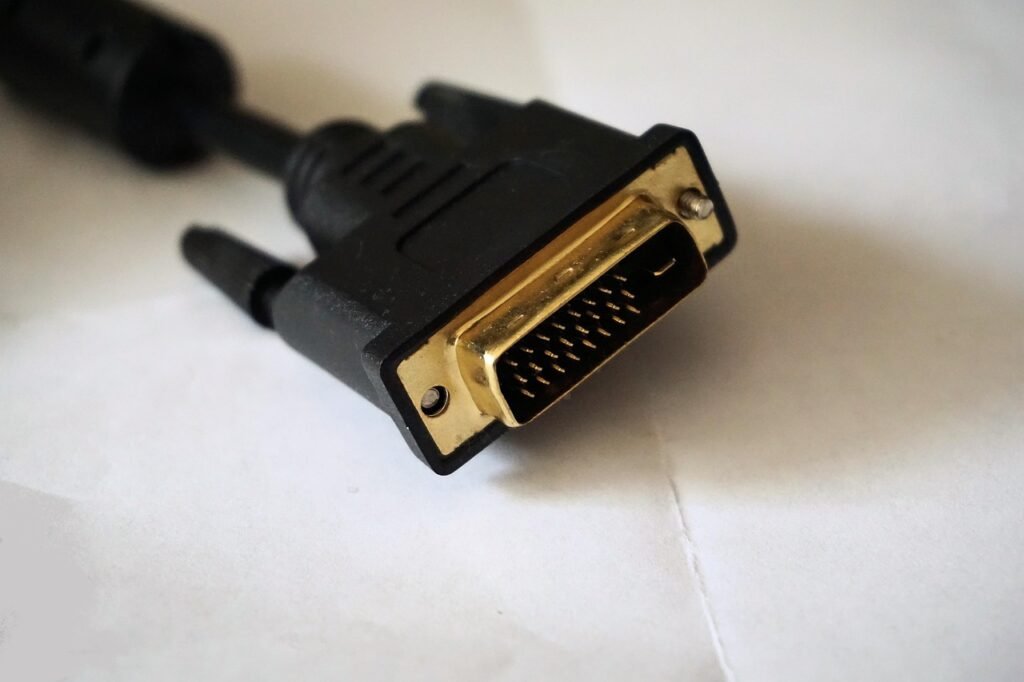
Then check the physical connection. Unplug the cable at the monitor and at the computer, push each end back in firmly, try a different port on the computer, and swap in another cable if you have one. A cable that’s bent sharply, damaged or not rated for the resolution and refresh rate you’re running is a common culprit. If the same monitor flickers with a different computer, the problem likely sits in the monitor itself.
Apps that start flickering after an update
When the Task Manager test points to an app, think back to what changed recently. Microsoft’s advice is to go to Settings, Apps, Installed apps, uninstall the most likely app, restart, and see if the flicker stops. If not, remove the next suspect and repeat, one app at a time. Overlays, screen recorders, older antivirus tools and display utilities are typical suspects.
After the flicker stops, check the app developer’s website for an updated version before reinstalling it. A single browser flickering, rather than the whole desktop, is often fixed by toggling that browser’s hardware acceleration setting.
Flicker that points to a hardware fault
Some flicker has nothing to do with Windows. If the screen flickers on the maker’s logo during startup or in the BIOS setup screen, before Windows has even loaded, suspect the hardware. On a laptop, flicker that changes when you move the lid can mean a worn display cable at the hinge. Connect the laptop to an external monitor; if that screen is steady, the laptop’s panel or its cable is at fault.
Some screens also dim their backlight by pulsing it rapidly, which a few people notice as flicker or eye strain at low brightness. Raising brightness is a quick test. For suspected hardware faults, contact the manufacturer’s support, especially while the device is under warranty, and read the warranty terms before opening anything yourself. Tearing during games is a separate issue with its own fixes.
Frequently asked questions
Why does my screen flicker only when I play games?
Flicker in games often comes from a driver problem, an unstable refresh rate setting or an overlay app running on top of the game. Update the graphics driver, set the monitor to a refresh rate it supports, and temporarily disable overlays and recorders to see which change stops it.
Can a bad HDMI cable cause screen flickering?
Yes. A damaged cable, loose connector or cable not rated for the resolution and refresh rate you're running can cause flicker or brief blackouts. Reseat both ends, try another port, and swap in a known good cable. If the flicker disappears, replace the old cable.
Is screen flickering a sign my laptop screen is dying?
Not necessarily. Most flicker traces back to drivers or apps. It points to hardware when it appears on the startup logo screen before Windows loads, changes as you move the lid, or doesn't show on an external monitor. In those cases contact the manufacturer's support.