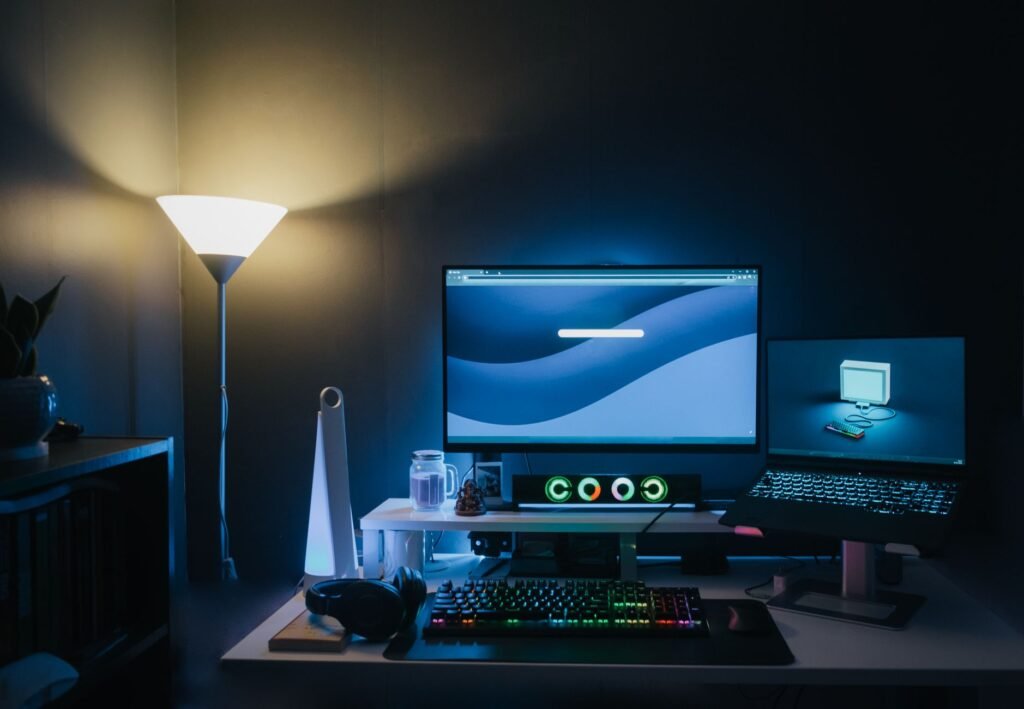
Choose a gaming monitor by matching its resolution and refresh rate to what your graphics card or console can actually push, then pick the panel type and size. A screen rated far beyond your hardware sits idle, and one rated below it leaves frames on the table you already paid for.
Match the monitor to the machine feeding it
Every spec on the box depends on the device behind it. A 4K panel at a high refresh rate needs a graphics card strong enough to render that many pixels that many times a second. If the card can’t, the monitor spends most of its life waiting.
| Your setup | What to prioritize | What to check first |
|---|---|---|
| Midrange gaming PC | High refresh rate at a moderate resolution | Frame rates your card reaches in the games you play |
| High end gaming PC | Higher resolution with high refresh | Whether the port you plan to use carries both at once |
| Current game console | An HDMI input that handles the console’s top output mode | The console’s video output settings menu |
| Laptop plugged into a desk screen | A refresh rate the laptop’s video port can drive | The laptop maker’s spec page for its display outputs |
Look up benchmark results for your own graphics card in the games you actually play. That number, not the monitor’s headline figure, tells you which tier makes sense.
What refresh rate and response time really measure
Refresh rate, listed in hertz, is how many times per second the screen draws a new image. More refreshes mean smoother motion and a little less delay between your mouse movement and what you see, as long as the game produces enough frames to fill them.
Response time is different. It describes how fast a pixel changes from one shade to another, usually quoted as gray to gray. Slow pixels leave a faint smear behind moving objects. Manufacturers measure this in different ways, so treat the number as a rough guide and read independent reviews that test motion blur with cameras.
Overdrive settings in the monitor menu speed pixels up, but pushed too far they create bright halos around moving edges. Try each level while watching a moving object and keep the one with the least smearing and the fewest halos.
IPS, VA, OLED and TN panels side by side
| Panel type | Strengths | Trade offs |
|---|---|---|
| IPS | Accurate color, wide viewing angles | Blacks look grayish in a dark room |
| VA | Deep contrast, good for dim rooms | Dark shades can smear during fast motion |
| OLED | Pixels switch off for true black, very fast response | Static images such as game HUDs can leave lasting marks over time |
| TN | Fast and usually inexpensive | Colors shift when viewed from an angle |
If you’re leaning toward OLED, read the warranty and see whether burn in is covered. Some makers include it and some don’t, and that detail can decide the purchase.
Adaptive sync labels and the ports on the back
Screen tearing happens when the monitor refreshes in the middle of a new frame arriving. Adaptive sync fixes it by letting the monitor wait for the graphics card. AMD’s FreeSync is based on the VESA Adaptive-Sync standard, according to the DisplayPort FAQ. NVIDIA lists three tiers on its site, with G-Sync Compatible meaning the monitor has no NVIDIA processor inside but was validated by NVIDIA for basic variable refresh.
Ports trip up a lot of buyers. A monitor may reach its advertised refresh rate only over DisplayPort, or only over its newest HDMI input. Check the spec sheet for the maximum refresh rate at native resolution on each port, and make sure the cable you have is rated for it.
Size, resolution and how far you sit
Size and resolution work as a pair. Stretch a lower resolution across a large screen and you’ll see individual pixels and fuzzy text from a normal desk distance. Pack a high resolution into a small screen and the extra detail is hard to notice while it still costs frame rate.
Measure the depth of your desk before shopping. A big screen on a shallow desk forces you to turn your head to see the edges, which is exactly where the minimap and ammo counter live. Curved screens help on wide models, less so on smaller ones. If you can, stand at a store display at your usual seating distance and read some small text before deciding.
Once the monitor is home, confirm in your operating system’s display settings that it’s actually running at its rated refresh rate, since many systems default to a lower one.
Frequently asked questions
Is a higher refresh rate always better for gaming?
Only if your hardware can use it. A high refresh monitor shows its benefit when the game delivers enough frames per second to fill those refreshes. If your graphics card or console runs a game well below the rated number, you pay for smoothness you never see.
Can I use a TV as a gaming monitor?
Yes, many people do, especially with consoles. Check that the TV has a game mode to cut input delay and an HDMI input that supports the console's highest output mode. Many TVs have no DisplayPort input, so PC players should confirm their graphics card has a suitable HDMI port.
Do I need a special cable for a high refresh monitor?
Often, yes. Older cables may not carry enough bandwidth for high resolution at high refresh. Use the cable that came in the box, or check that a replacement is certified for the HDMI or DisplayPort version your monitor's spec sheet lists for its top mode.
Are curved monitors good for gaming?
They can be, mostly on large and ultrawide screens, where the curve keeps the edges closer to your line of sight and makes the picture feel more immersive. On smaller screens the benefit is slight. Screen width, desk depth and personal taste decide it, so try one at a store if you can.
Do gaming monitors have speakers?
Some do, but many have none, and built-in ones are usually small and basic. Check the spec sheet for speakers or a headphone jack. HDMI and DisplayPort both carry audio, so a monitor with a headphone jack can pass game sound to headphones or desktop speakers plugged into it.
Can you use a gaming monitor for work?
Yes. Most gaming monitors handle email, documents and spreadsheets without trouble, and a high refresh rate makes scrolling look smoother. For long reading sessions, pick a resolution that suits the screen size so text looks sharp. For photo or design work, check reviews for color accuracy, which varies by model and panel type.