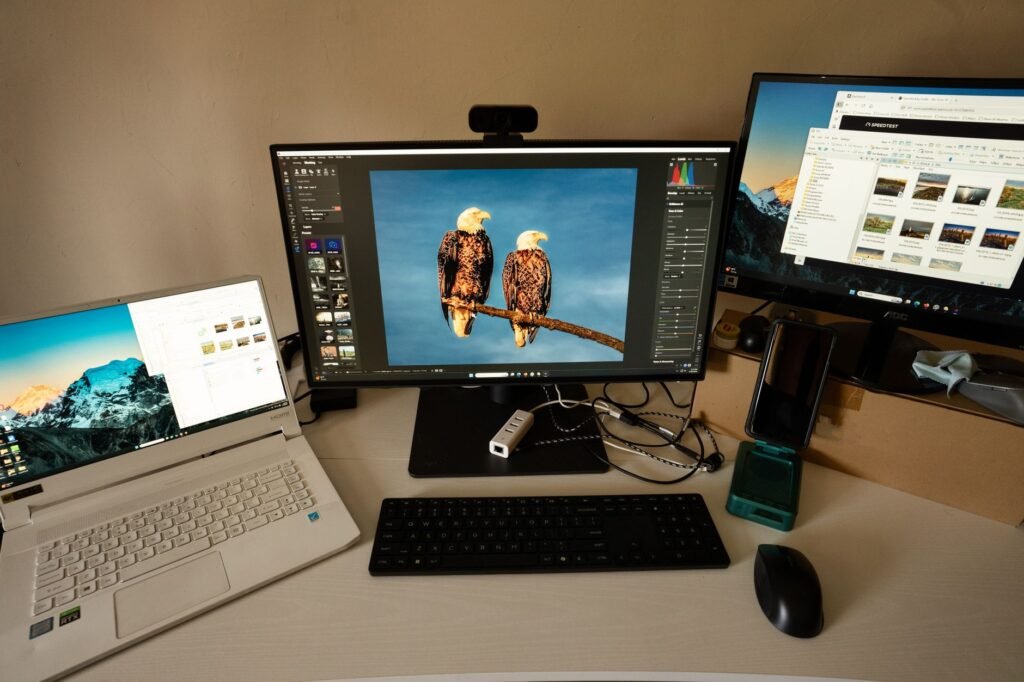
To connect two monitors, plug each one into its own video port on your computer with the right cable, then choose Extend in your display settings. On Windows, press the Windows logo key plus P and pick Extend. On a Mac, arrange the screens in System Settings under Displays.
Counting the video outputs on your computer
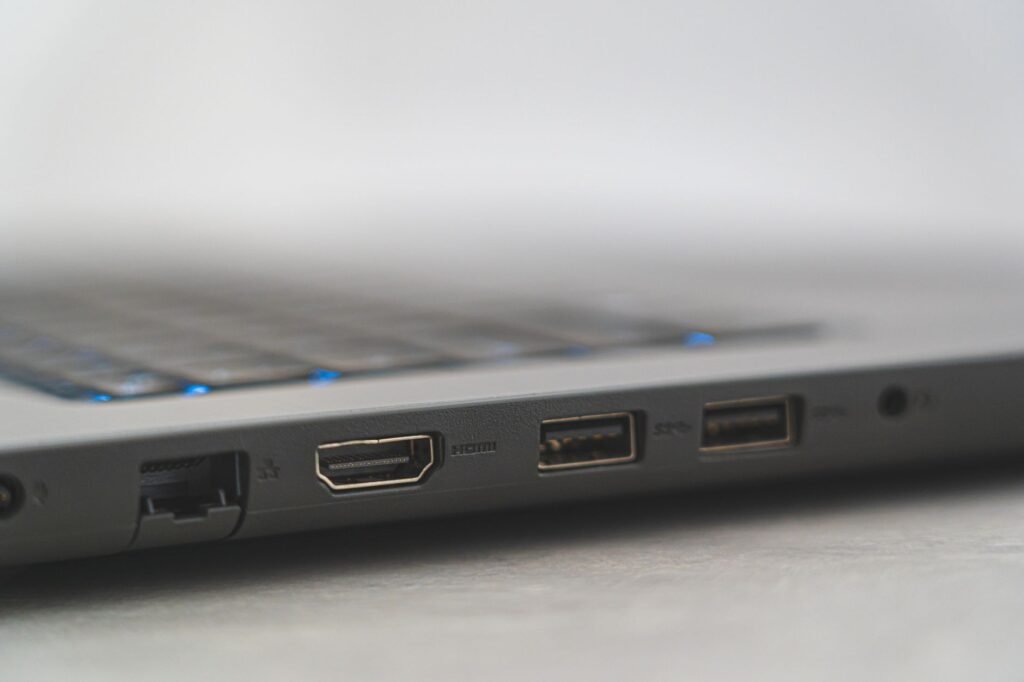
Start at the back of the desktop or the sides of the laptop. The usual video outputs are HDMI, DisplayPort, and USB-C ports that carry video. Not every USB-C port sends a picture, so look for a display icon next to the port or check the specifications for your model. Two usable outputs means two monitors can plug in directly.
A desktop with a separate graphics card has its own row of video ports on the card, and those are the ones to use. A laptop with a single video output usually needs a docking station to run two external screens. On a Mac, the number of external displays depends on the model, and Apple says to check the Tech Specs page for yours.
Before you shop for cables, take a phone photo of the ports on your computer and on the back of each monitor. Comparing the two photos side by side shows exactly which cable or adapter each connection needs, and it keeps you from driving back to the electronics store for a different cable.
Matching each port to a monitor cable
| Port on the computer | Input on the monitor | Cable or adapter |
|---|---|---|
| HDMI | HDMI | HDMI cable |
| DisplayPort | DisplayPort | DisplayPort cable |
| DisplayPort | HDMI | DisplayPort to HDMI cable or adapter |
| USB-C with video | USB-C | USB-C cable rated for video |
| USB-C with video | HDMI or DisplayPort | USB-C to HDMI or DisplayPort adapter |
| Only one video output | Two monitors | Docking station, or daisy chaining if the monitors support it |
Monitors usually come with at least one cable, but not always the one your computer needs. Check both ends before buying, and read the monitor manual to see whether it supports daisy chaining one screen through another.
Turning on the second screen in Windows
- Connect both monitors, power them on, and set each monitor input to the port you used.
- Press the Windows logo key plus P and choose Extend. The other options are PC screen only, Duplicate and Second screen only.
- Open Start, then Settings, then System, then Display.
- Select Identify. A number appears on each screen so you know which is which.
- Drag the display icons to match how the monitors sit on your desk, then select Apply.
- Under Multiple displays, pick which screen is your main display, and set each one to its recommended resolution.
Microsoft walks through the same settings on its multiple monitors support page, including how to reorder displays when your mouse jumps off the wrong edge.
Arranging two external displays on a Mac
Connect the monitors, then open the Apple menu, choose System Settings (System Preferences on older versions), and click Displays. From there you can set resolution and refresh rate, choose which display holds the menu bar, and drag the screens into the arrangement that matches your desk.
If only one external monitor lights up, the Mac may support fewer external displays than you have plugged in. Apple explains on its guide to connecting displays that support varies by model and points to each model’s specifications page for the limit. A dock cannot raise that limit, so check the specs before buying extra hardware.
When the second monitor says no signal
Most no signal messages come from the monitor itself looking at the wrong input. Use the buttons on the monitor to switch to the port you plugged into. Next, unplug and firmly reseat both ends of the cable, then try a different cable or port to rule out a bad one.
On Windows, open Display settings and select Detect under Multiple displays to make the computer look for the screen again. If that fails, check for Windows updates and install the latest graphics driver from your computer or graphics card maker. A cheap adapter can also be the weak link, so test without it if you can.
Frequently asked questions
Can a laptop run two external monitors?
Many can, but it depends on how many video outputs the laptop has and what its graphics hardware supports. Check the maker's specifications for the maximum number of external displays. A laptop with a single output usually needs a docking station, and some Macs support fewer external displays than others.
Do both monitors need to be the same size?
No. Windows and macOS both handle monitors of different sizes and resolutions. Setting each one to its recommended resolution and adjusting the scale setting keeps text a similar size across screens. Matching models mainly helps with looks, so the bezels and heights line up neatly on the desk.
Why does my second monitor show the same thing as the first?
The displays are set to duplicate, which mirrors one screen onto the other. On Windows, press the Windows logo key plus P and choose Extend. On a Mac, open Displays in System Settings and set the second screen as an extended display rather than a mirror.
How do you use two monitors?
Set Windows to Extend so both screens work as one wide desktop, then drag windows from one screen to the other. Microsoft lists Windows logo key plus Shift plus Left or Right arrow as the shortcut for moving the active window between monitors. Arrange the screens in Display settings so the mouse crosses where you expect.
How do you connect two monitors to one PC with HDMI?
If the PC has two HDMI outputs, run an HDMI cable from each one to a monitor, then press the Windows logo key plus P and choose Extend. With a single HDMI port, plug the second monitor into a DisplayPort or video capable USB-C port using the right cable or adapter, or add a docking station.
How do you put a different wallpaper on each of two monitors?
In Windows, open Settings, then Personalization, then Background, and choose Picture. Right-click an image and pick the display it should appear on, then repeat for the other screen. Microsoft notes the option is unavailable if you use multiple virtual desktops, and the Span fit stretches one picture across both screens instead.