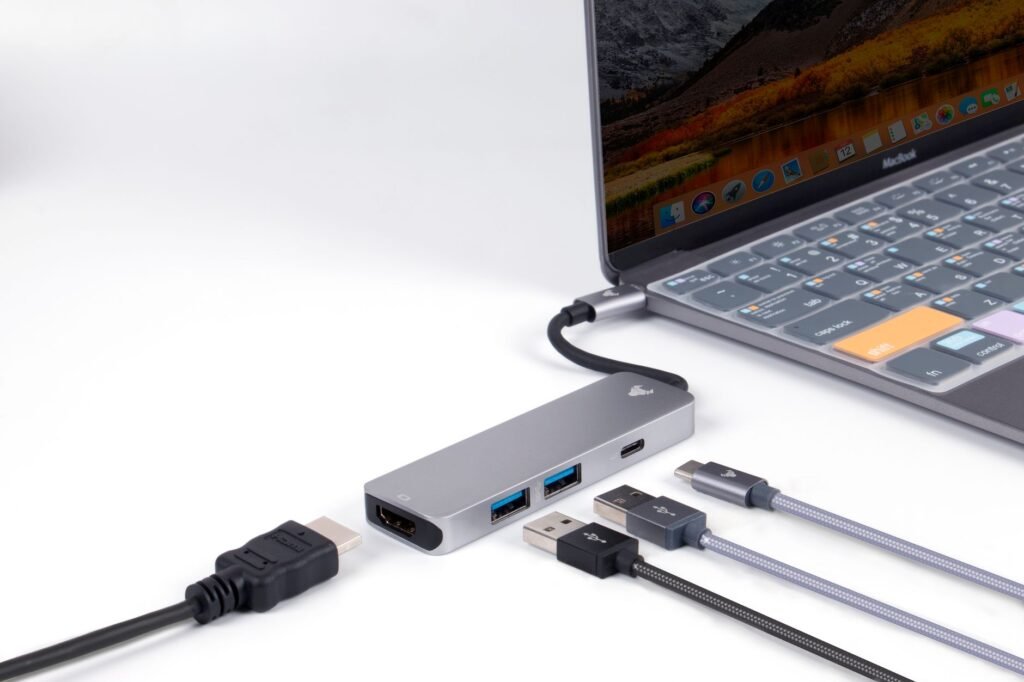
Run a cable from the laptop to the projector, press the projector source button until it names that exact port, then choose mirror or extend on the laptop. Most failures are not the cable. They are the wrong input selected on the projector, or a USB-C port that was never wired to carry video.
HDMI and USB-C do the same job by different routes
A standard HDMI cable is the predictable option. The port is shaped so it only fits one way, it carries picture and sound together, and nothing has to negotiate beyond the two devices agreeing on a resolution. If the laptop has a full size HDMI socket and the projector has one too, use that first and save the troubleshooting for later.
USB-C is the newer route, and it works by carrying a display signal through the same oval connector that handles charging and files. The feature is called DisplayPort Alternate Mode. Since almost every projector still takes HDMI, a USB-C connection normally means a cable or small adapter with USB-C on one end and HDMI on the other.
Older projectors sometimes carry a blue trapezoid VGA socket as well. That one moves picture only, so sound has to travel on a separate audio lead, and the image softens noticeably on anything text heavy. Treat it as the fallback when neither modern port is available on both ends.
Why some USB-C ports refuse to send a picture
This is the part that wastes an afternoon. Two USB-C ports on the same laptop can look identical and behave completely differently, because Alternate Mode is optional. A port built for charging and data alone will accept the adapter, power it, and never produce an image, and nothing on screen explains why.
Look at the tiny symbol printed or stamped beside each port. A small letter D shape, a lightning bolt in a rectangle, or the word DP marks a port wired for display output. If no port is marked and the manual is gone, plug the adapter into each one in turn and give the projector a few seconds on each before moving on.
Mirror or extend, and why the choice changes what you see
- Mirror shows the same image on both screens. Use it for a movie or when the audience should see exactly what you see.
- Extend treats the projector as a second desk surface. Use it for presenting, so notes stay private on the laptop while slides go out front.
- Second screen only blanks the laptop panel and drives the projector alone, which helps when a dim room makes the laptop screen distracting.
Windows cycles these with the Windows key plus P. On a Mac, the arrangement panel in display settings holds the mirroring checkbox. Extend catches people out because windows open on whichever screen the system calls primary, so a video that seems missing is often playing happily on a display nobody is looking at.
Sound follows its own path and surprises people. HDMI and USB-C both carry audio, so the projector often grabs it the moment it connects, and a projector speaker is usually small and tinny. Open the sound output list and pick the laptop speakers or a separate speaker if the room deserves better than what the projector can manage.
When the resolution or refresh rate will not line up
A picture with black bars, cropped edges or visible flicker means the two devices settled on a shape they do not share. Projectors advertise a native resolution and a range of refresh rates they accept, and a laptop that pushes past that range gets a blank screen, a rolling image, or an on screen complaint from the projector.
Open the display settings, select the projector as the active display, and drop the resolution one step at a time until the image fills the frame cleanly. Set the refresh rate to the lowest option the list offers before assuming the cable failed. Long runs of thin cable also lose signal, so if a shorter cable works at the same settings, the cable was the weak link.
Frequently asked questions
Why does my projector say no signal even though the cable is in?
Most projectors stay on whichever input they were left on. Press the source or input button until the panel names the port you actually used. If the projector then reports no signal on that named port, the problem has moved to the cable or the laptop output, and you can test each separately.
Can I use a USB-A port to send video to a projector?
Not directly. Ordinary rectangular USB-A ports carry data and power, not a display signal. Adapters that claim to do it contain a small graphics chip and need a driver installed first, so they behave differently from a plain cable and often fail on a borrowed machine.
Should I close the laptop lid while projecting?
You can, but the default behavior on many machines is to sleep when the lid shuts, which kills the picture. Change the lid action in your power settings to do nothing while plugged in, or leave the lid open and set the projector as the only active display instead.