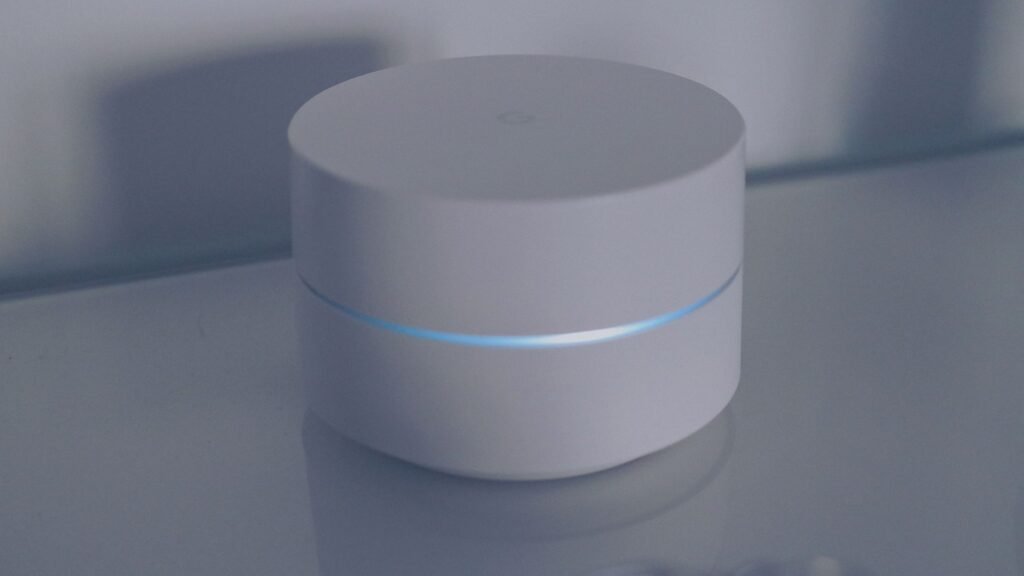
To reset a router, start with a restart by unplugging it, waiting a little while and plugging it back in, which clears temporary glitches without changing any settings. A factory reset, done by holding the reset button, erases your Wi-Fi name, password and custom settings, so save it for problems a restart does not fix.
Restart and factory reset do very different jobs
People use the word reset for both, and confusing the two can turn a five minute fix into an evening of reconnecting every device in the house. A restart, also called a reboot or power cycle, just turns the router off and on. A factory reset returns it to the state it was in when it left the box.
| Restart | Factory reset | |
|---|---|---|
| How you do it | Unplug, wait, plug back in, or use the restart option in the app | Hold the reset button, or choose it in the settings page |
| Wi-Fi name and password | Kept | Back to the defaults on the label |
| Custom settings | Kept | Erased |
| Temporary glitches and memory | Cleared | Cleared |
| Time to get back online | A few minutes | Longer, since setup starts over |
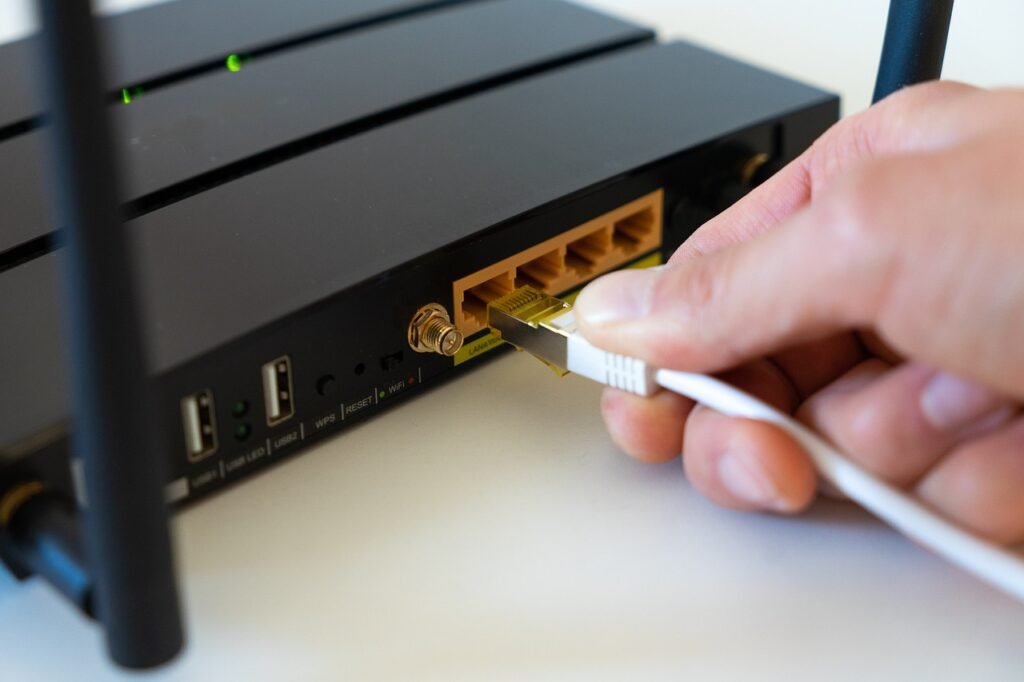
Restarting the modem and router in order
Many homes have two boxes, a modem that connects to the provider and a router that makes the Wi-Fi. Some providers combine them in one gateway. When you have two boxes, follow this sequence.
- Unplug the power cord from the router and then from the modem.
- Leave both unplugged for a short while. Your provider’s help page usually says how long it suggests.
- Plug the modem back in first and wait until its lights settle, which shows it has reconnected.
- Plug the router back in and wait a couple of minutes while it finishes starting up.
- Test on a device close to the router before judging the rest of the house.
Problems a restart usually clears
Routers are small computers that run for weeks without a break, and they build up the same kind of clutter a laptop does. A restart often fixes a connection that has become slow for no clear reason, a single device that suddenly will not join the network, pages that stall while the Wi-Fi icon shows full bars, and a network that acts strangely after a power outage.
If the internet is out for everyone and the modem lights still show no connection after a restart, open your provider’s outage page on a phone using cellular data. A factory reset will not fix a problem on the provider’s side.
When a factory reset is the right call
Reach for the full reset when the router’s settings are the problem, not the connection. That includes a router you bought used or inherited from a previous tenant, one you are about to sell or give away, settings you changed that broke something and cannot undo, or suspicion that someone else has been in the admin page.
Procedures differ by brand. As one example, TP-Link tells owners of its routers to hold the reset button for more than 10 seconds and to keep the router powered on until the process finishes, and it says the reset removes internet settings, Wi-Fi settings, port forwarding rules and parental controls. Check your own model’s support page before pressing anything.
Getting the network running again after a full reset
After a factory reset, the router broadcasts its default network name, printed on the label along with the default Wi-Fi password. Connect to that, open the setup app or web page, and run through setup again.
Give the network the same name and password you used before and most phones, laptops and smart speakers will reconnect on their own. Pick a new name instead and every device has to be joined again by hand. If you had a saved backup of the settings file, many routers let you restore it from the same menu. Provider gateways sometimes need a call to the provider to finish reactivating.
Frequently asked questions
How often should I restart my router?
There is no single rule. Restarting when the connection slows or a device will not connect is a good habit, and some routers let you schedule a restart in their app. Keeping the router's firmware updated through its app or settings page does more for security than frequent reboots.
Will resetting my router make my internet faster?
A restart can restore normal speed if the router had bogged down. It cannot raise the speed of the plan you pay for. Run a speed test on a device connected by cable after the restart, and compare it with your plan before calling your provider about slow service.
Does a factory reset update the router's firmware?
No. A factory reset clears your settings but leaves the installed firmware version in place. After setup, open the router's app or admin page and check for updates, since many routers install them only when you approve or schedule them.
How do you reset an Xfinity router?
For a restart, Xfinity says to unplug the modem or gateway, wait one minute and plug it back in, or run the Wi-Fi troubleshooter in the Xfinity app. For a factory reset on its XB2 and XB3 gateways, hold the reset button on the back for 30 seconds with a paperclip. That erases your custom Wi-Fi name and password.
How do you reset a Netgear router?
For a factory reset, NETGEAR says to check that the power light is on, then hold the Reset or Restore Factory Settings button with a paper clip for seven seconds. The reset deletes your Wi-Fi name, password and security settings, and Armor or Smart Parental Controls subscriptions must be reactivated in the Nighthawk app. A restart only needs unplugging.