
Fix slow internet by running a speed test, restarting the modem and router, and testing again with a device plugged into the router by cable to see whether Wi-Fi or the connection itself is at fault. From there, the usual fixes are moving the router, updating it, and trimming background traffic.
Measure the speed before changing anything
Slow is a feeling. A number gives you something to compare. Run a speed test from your provider’s website or another testing site, and note the download and upload results. Then find your plan’s advertised speed on your bill or your online account.
Test a few times at different hours. A result that is close to your plan in the morning and poor every evening points somewhere different than one that is poor all day. Pause large downloads, cloud backups and streaming on other devices while testing, so they do not drag the number down. Many routers and provider apps include their own speed test and a list of connected devices, which saves a step later.
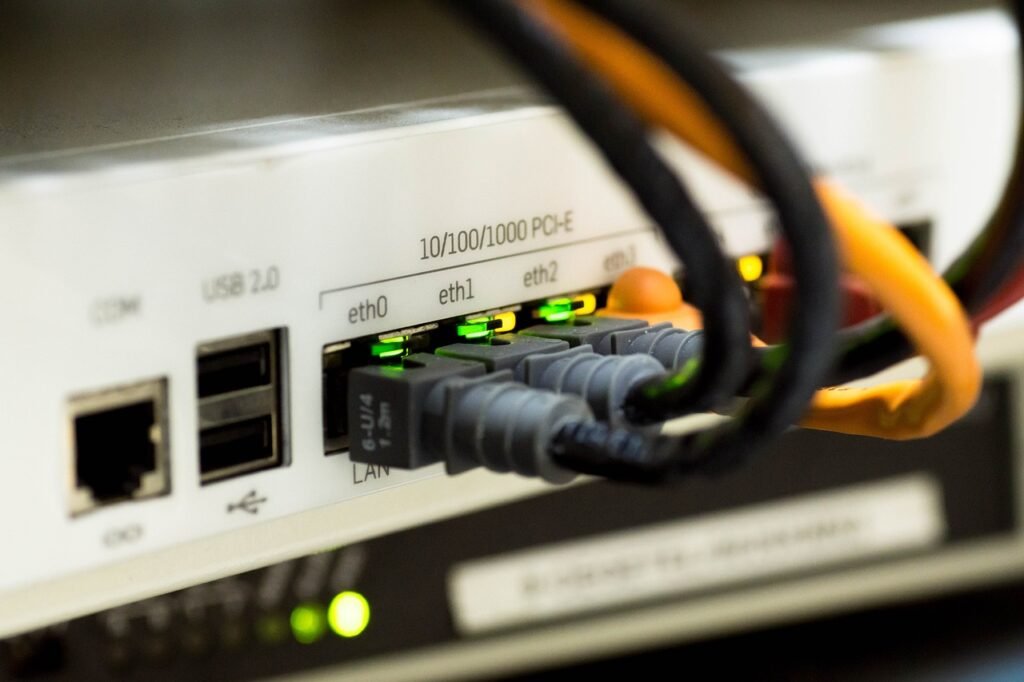
Restart the modem and router in the right order
A restart clears memory, drops stuck connections and forces the modem to reconnect to your provider. The order counts.
- Unplug the power from the modem and the router. If they are one combined box, unplug that.
- Leave them unplugged until every light is off, then wait a little longer.
- Plug in the modem first and let it finish starting up, which is usually shown by a steady internet or online light.
- Plug in the router and give it time to broadcast Wi-Fi again.
- Restart the computer or phone you are testing on, then run the speed test again.
If the modem cannot find the internet light after a restart, check your provider’s outage page or app before anything else.
Wired and Wi-Fi results point to different culprits
Plug a laptop into the router with an Ethernet cable and test again. Comparing that result with a Wi-Fi test on the same device narrows the problem fast.
| What you see | Likely cause | Next step |
|---|---|---|
| Wired fast, Wi-Fi slow | Wireless coverage or interference | Move the router, check bands, consider a mesh system |
| Wired and Wi-Fi both slow | The connection, the modem, or the plan | Check for outages, then call your provider |
| Only one device slow | That device | Update it, restart it, check for background apps |
| Slow only at busy hours | Congestion in the home or the provider’s network | Schedule big downloads, ask your provider |
If only one computer is slow at everything, not just online, a separate guide on fixing a slow laptop is the better starting point.
Router placement, Wi-Fi bands and firmware
Wi-Fi weakens through walls, floors and large appliances. Put the router in a central, open, raised spot, not in a cabinet, behind the TV or on the floor in a corner. Metal shelving, mirrors and fish tanks also weaken the signal between the router and your devices.
Most routers broadcast on more than one band. Apple’s recommended router settings call for a 20 MHz channel width on the 2.4 GHz band to avoid interference with nearby networks and Bluetooth devices, the same network name across all bands, and automatic firmware updates. Those updates bring stability, performance and security fixes, so turn them on in the router app or admin page.
While you are in there, check the connected device list. An old tablet streaming video or a cloud backup running all day can eat bandwidth everyone else notices.
When the slowdown belongs to your provider
If the wired test is slow after a restart and no outage is listed, call your provider with your test results in hand. Ask them to check the signal to your modem and whether your modem model is still supported for your plan. If you rent the modem, ask whether a newer model can be swapped in.
Sometimes the connection is fine and the plan is too small for a household with many streams, video calls and game downloads at once. Your provider’s website lists the tiers available at your address, so count your heaviest simultaneous uses and compare.
Frequently asked questions
Does a VPN slow down internet speed?
It can. A VPN encrypts your traffic and routes it through another server, which adds distance and processing. The effect varies by provider, server location and your device. Test with the VPN on and off. If the difference is large, try a closer server or ask the VPN provider for help.
Why is my internet slow only at night?
Evenings are when most people in a home, and in a neighborhood, stream and game at the same time. That can crowd your own Wi-Fi and, on some connection types, the provider's local network. Run speed tests at different hours and share those results with your provider if it persists.
Will a Wi-Fi extender fix slow internet?
Only if the problem is weak coverage in part of the house. An extender or mesh system spreads the signal farther, but it cannot make the incoming connection faster than your plan. If wired tests right at the router are slow too, the fix lies with the modem, the plan or the provider.
What is a good internet speed?
It depends on how many people stream, game and video call at the same time. The FCC's benchmark for home broadband is 100 Mbps download and 20 Mbps upload. Its speed guide lists about 5 to 8 Mbps for an HD video stream and 25 Mbps for 4K, so add up your household's busiest hour.
Why is the internet so slow today?
When every device slows down on the same day and nothing changed at home, the cause is usually outside the house, such as a provider outage, maintenance or a congested network. Check your provider's outage page or app, restart the modem and router, and run a speed test. If it stays slow, call the provider with your results.
Why is my internet so slow on my phone?
Often the phone has slipped onto weak cellular data or is too far from the router, so check that it shows your Wi-Fi network. Restart it, install updates and pause big app downloads. On an iPhone, Low Data Mode lowers streaming quality and pauses background tasks, so turn it off at home if video looks worse.