To stop laptop fan noise, lower the heat the fan is fighting by closing programs that keep the processor busy, clearing dust from the vents and setting the laptop on a hard, flat surface. A quieter power mode helps too. Never block the vents or force the fan off, since the noise is protecting the chips.
Why the fan spins up at all
A laptop fan speeds up when sensors report rising temperatures, and those temperatures climb when the processor or graphics chip is working hard. Loud fans are a symptom, not the fault. The goal is to find the source of the heat or the reason heat cannot escape.
| What you notice | Likely cause | What to try first |
|---|---|---|
| Loud while you do very little | A background program using the processor | Check Task Manager or Activity Monitor |
| Loud only on a bed or lap | Blocked intake vents | Move to a hard surface or stand |
| Gets louder over months | Dust packed in the vents and heatsink | Clean the vents |
| Grinding, rattling or clicking | A worn or damaged fan | Contact the manufacturer or a repair shop |
Finding the program that keeps the processor busy
On Windows, press Ctrl, Shift and Esc together to open Task Manager, then sort the Processes tab by CPU. On a Mac, open Activity Monitor from Applications, then Utilities, and sort by percent CPU. Whatever sits at the top while you are idle is your likely culprit.
Common offenders include a browser with dozens of open tabs, video calls, cloud backup and sync apps, system updates installing in the background, and security scans. Some of these finish on their own. Others can be scheduled for times you are away from the desk, or quit when you do not need them. A process you do not recognize using a lot of CPU deserves a full security scan. After a large update, a restart often settles things, since some installers keep working in the background until the next reboot.
Giving the vents room to pull in air
Many laptops draw cool air through vents on the bottom. A blanket, pillow or lap closes them off, and the fan races to make up for it. A desk, a tray or a simple stand that raises the back edge keeps the intake clear.
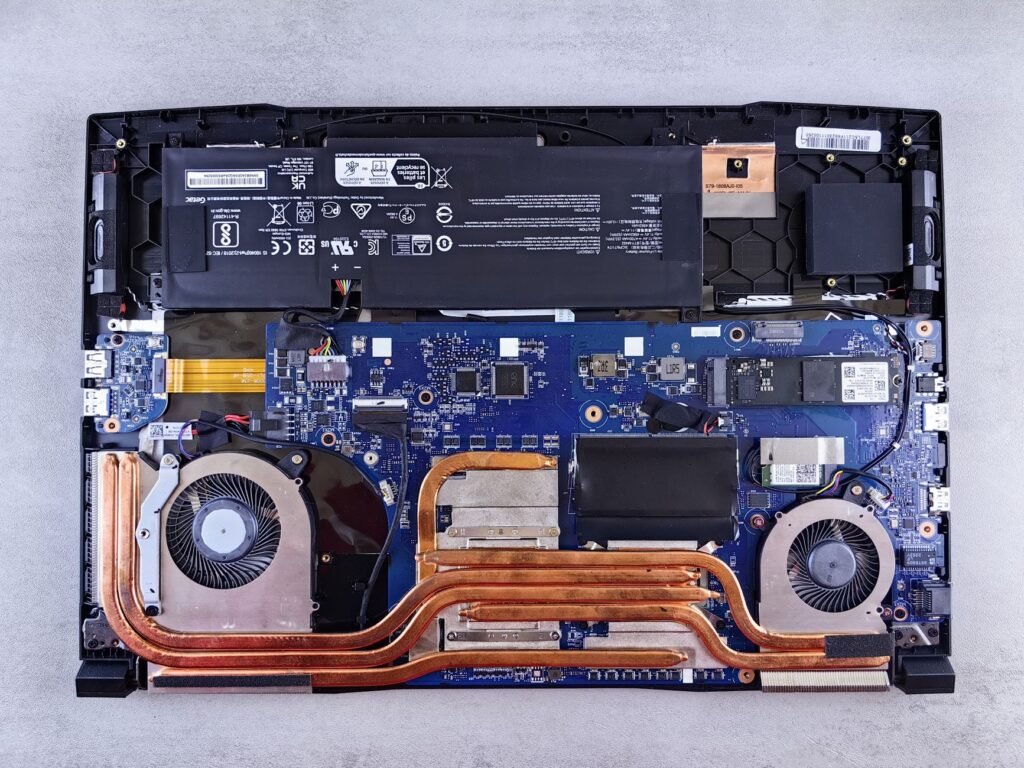
Dust builds up inside over time. To clear it, shut the laptop down completely and unplug it. Hold a can of compressed air upright and blow short bursts into the vents from a few angles, so the dust comes out rather than being packed deeper. Tilting or shaking the can can spray cold liquid propellant. A laptop covered by warranty may come with rules about opening the case, so read the manufacturer’s guidance first. A soft, dry brush clears lint from the outside of the vent grilles between deeper cleanings.
Power settings that trade a little speed for quiet
A laptop set to maximum performance lets its chips run hotter, which keeps the fan busy. In Windows 11, the power mode setting is under Start, Settings, System, Power and battery, with options for best power efficiency, balanced and best performance. Balanced or best power efficiency usually runs cooler.
Macs offer a Low Power Mode on many models under Battery settings. Laptop makers also ship their own control apps, and some include a quiet or cool mode that adjusts fan behavior. Check your manufacturer’s support page for firmware updates, since those can change how the fan responds to heat.
Sounds that point to a failing fan
A healthy fan makes a steady whoosh that rises and falls. Grinding, rattling, ticking or a high pitched whine usually means worn bearings or something touching the blades, and cleaning will not fix it. A fan that stays silent while the laptop gets hot and shuts down is just as serious.
Skip third party apps that force fan speeds down. Overriding the built in thermal controls can let the laptop overheat, and a failing fan is a part to replace through the manufacturer or a repair shop. Cleaning a household fan follows different rules and gets its own guide.
Frequently asked questions
Is it bad if my laptop fan is always loud?
A fan that runs loud constantly means the laptop is working hard or struggling to shed heat. It is not harmful on its own, since the fan is doing its job, but ongoing heat can shorten battery life and cause slowdowns. Find the busy program or clean the vents to bring it down.
Does a laptop cooling pad reduce fan noise?
A cooling pad raises the laptop and adds airflow under the case, which can help models that pull air through the bottom. Results vary by design, and the pad's own fans add some noise. A stand that lifts the back edge on a hard surface gives similar airflow without extra sound.
Can I turn off my laptop fan completely?
You should not. The fan removes heat that would otherwise build up and force the laptop to slow down or shut off. Some models stop the fan when temperatures are low, which is normal. If you want quiet, reduce the heat instead of disabling the cooling system.
How do you clean a laptop fan?
Shut the laptop down, unplug it, and blow short bursts of compressed air into the vents from a few angles, holding the can upright so it does not spray liquid propellant. Dust packed deep in the fan or heatsink may mean opening the case, so check the manufacturer's service guide and warranty first, or use a repair shop.
How do you control fan speed on a laptop?
Mostly indirectly, because the laptop sets fan speed automatically from its temperature sensors. In Windows 11 you can choose a less demanding power mode under Settings, System, Power and battery, and some makers' apps add quiet or cool modes. Skip third-party tools that force the fan slower, since they can let the laptop overheat.