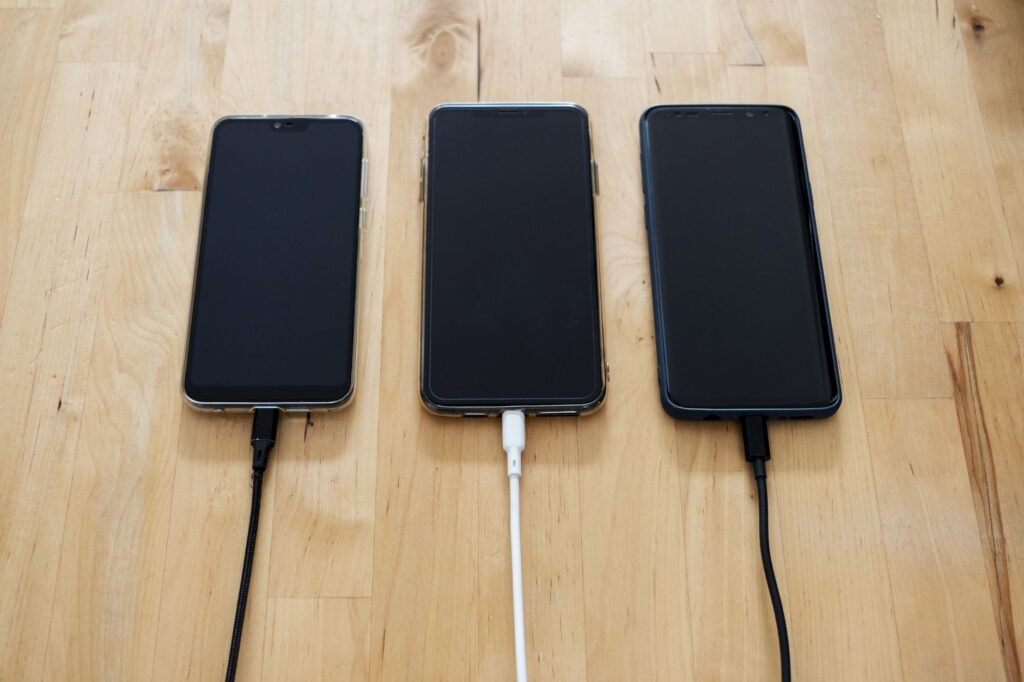
Most phones that won’t charge are fixed by trying a different cable, adapter and outlet, clearing lint from the charging port, and restarting the phone. If none of that works, check for moisture or charging alerts, then let a repair shop test the port and battery, which are the usual hardware causes.
Swap the cable, adapter and outlet first
Charging cables fail far more often than phones do. The wires inside break near the connector from bending, even when the outside looks fine. Apple’s guide for an iPhone that won’t charge starts in the same place, telling you to check the cable and USB adapter for damage such as breakage or bent prongs and to make sure every connection is firm.
| What happens | Likely cause | Try this |
|---|---|---|
| No charging with any cable | Blocked port, software glitch or hardware fault | Clean the port, restart, then seek repair |
| Charges only at certain angles | Worn cable or lint in the port | New cable, then clean the port |
| Charges very slowly | Low-power adapter or computer USB port | Use a wall adapter that matches the phone |
| Stops around 80 percent | A battery-saving charging feature | Check battery settings |
| Alert about liquid or the accessory | Moisture in the port or an unsupported cable | Dry the phone, swap cable |
Borrow a cable and adapter you know works with another phone. Plug into a wall outlet rather than a power strip or a car port while you test.

Clearing lint out of a charging port
Pockets pack lint into the port a little at a time, until the cable no longer seats fully. Shine a flashlight into the opening. If you see a gray felt layer at the back, it’s likely the culprit, and a cable that used to click firmly now feels loose.
Turn the phone off. Gently scrape the lint loose with a wooden or plastic toothpick, working along the inside walls rather than jabbing at the contacts in the center, then tip the phone so debris falls out. Avoid metal pins and liquid cleaners. Apple lists removing debris from the charging port as one of its standard steps.
Restart the phone and check the software
A frozen charging process can look exactly like a dead port. Restart the phone, plug it in, and give it time. Apple suggests letting an iPhone charge for thirty minutes, then trying a force restart if it still won’t respond, followed by another thirty minutes on the charger.
Software features can also make a phone look stuck. iPhone’s Optimized Battery Charging can delay charging past 80 percent to reduce battery wear, and shows a notice on the Lock Screen when it’s active. Many Android phones have similar options, so check the battery section of Settings or your maker’s help pages. Install any pending updates as well, since charging bugs are sometimes patched.
Moisture alerts and what not to do
Many phones block wired charging when they sense liquid in the port. For an iPhone showing a liquid-detection alert, Apple says to tap the phone gently against your hand with the connector facing down, wait at least 30 minutes before trying to charge again, and leave it in a dry place with some airflow for up to a day if the alert persists.
Apple also warns against drying the phone with a heat source or compressed air, pushing a cotton swab or paper towel into the connector, or putting it in a bag of rice. Wireless charging, if your phone supports it, can keep you going while the port dries.
When the port or battery needs a repair shop
If the phone won’t charge with a known good cable after cleaning, restarting and drying, the problem is probably physical. A charging port can wear out or break loose inside, and batteries lose capacity with age. Signs of a battery problem include a phone that shuts off with charge still showing, a swollen case or a screen lifting at the edge. Stop charging a swollen phone and take it to the manufacturer or an authorized repair shop. Check warranty and insurance coverage before paying for a repair.
Frequently asked questions
Why does my phone say charging but the percentage does not go up?
The phone may be using power as fast as the charger supplies it, which happens with a weak adapter or a computer USB port while the screen is on. Try a wall adapter, turn the screen off, and close heavy apps. If it still stalls, a worn cable or aging battery is likely.
Can a dirty charging port stop a phone from charging?
Yes. Lint packed into the back of the port keeps the cable from seating fully, so the contacts do not touch. The cable may feel loose or charge only when held at an angle. Power the phone off and gently clear the lint with a wooden or plastic toothpick.
Is it safe to keep using a phone that only charges wirelessly?
Usually, if the phone behaves normally otherwise. Wireless charging bypasses the port, so a broken or clogged port does not affect it. If the phone gets unusually hot, shows a swollen battery, or smells of burning, stop using it and have it inspected promptly.
Why does my phone get hot when charging?
Charging gives off heat, so some warmth is normal, and Apple notes an iPhone may get slightly warmer while it charges. Certain cases trap that heat, and Apple suggests taking the phone out of its case if it gets hot. Charge in a cool spot, since Apple recommends ambient temperatures of 32°F to 95°F.
Why does my phone stop charging at 80 percent?
Usually a battery protection feature is at work. iPhone's Optimized Battery Charging can hold at 80 percent to reduce wear, and on iPhone 15 and later you can set a charge limit between 80 and 100 percent. Apple also says charging may pause above 80 percent when the battery gets too warm, then resume as it cools.